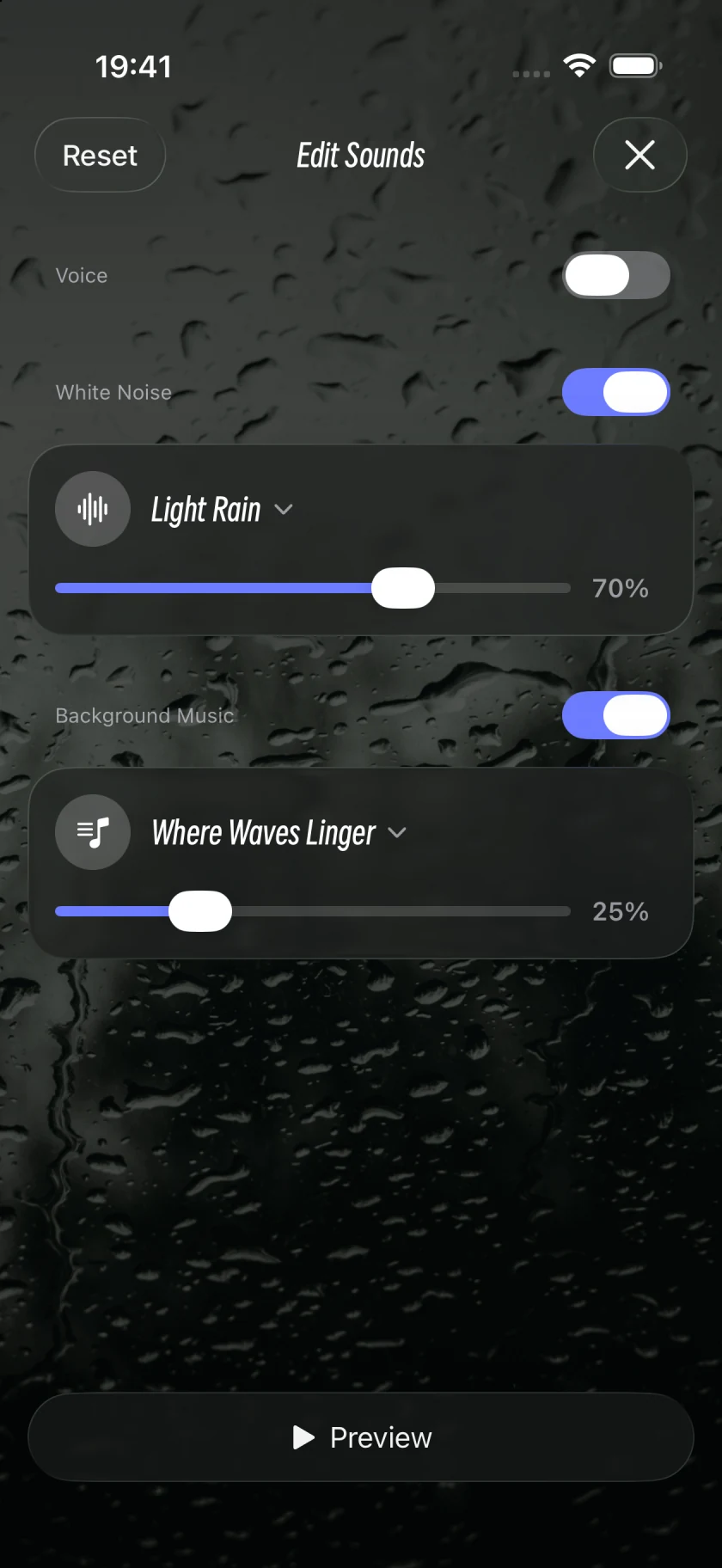
Sound Meditation combines one environmental sound with background music. Start with Light Rain, then adjust the two layers to suit you.
Step by step
1
Open Sound
Select Sound in the iPhone tab bar, then choose a sound such as Waves to open its player.
2
Open Edit Sounds
Select the music-note button labelled Edit Sounds.
3
Choose Light Rain
Enable White Noise, open the sound selection and choose Light Rain. Adjust the white-noise volume.
4
Add music
Enable Background Music, open the music selection and choose a track. Adjust the background-music volume separately.
5
Listen and adjust
Turn Voice off if you prefer just rain and music. Close the editor and start playback. You can return to adjust the mix whenever you like.
Screens captured in Oat Meditation 1.048 on an iPhone Simulator. Controls may be arranged differently on iPad; use the button names to find the same options.
How is this different from Travel Meditation?
Sound Meditation uses one white-noise sound with background music. Travel Meditation builds a scene from several environmental tracks, such as waves and wind, with individual track levels. Their editors offer different controls.
Can I try the rain before downloading?
The website offers a single-sound rain preview. Music mixing and separate volume controls are available in the app. Check the app for playable content and membership benefits.