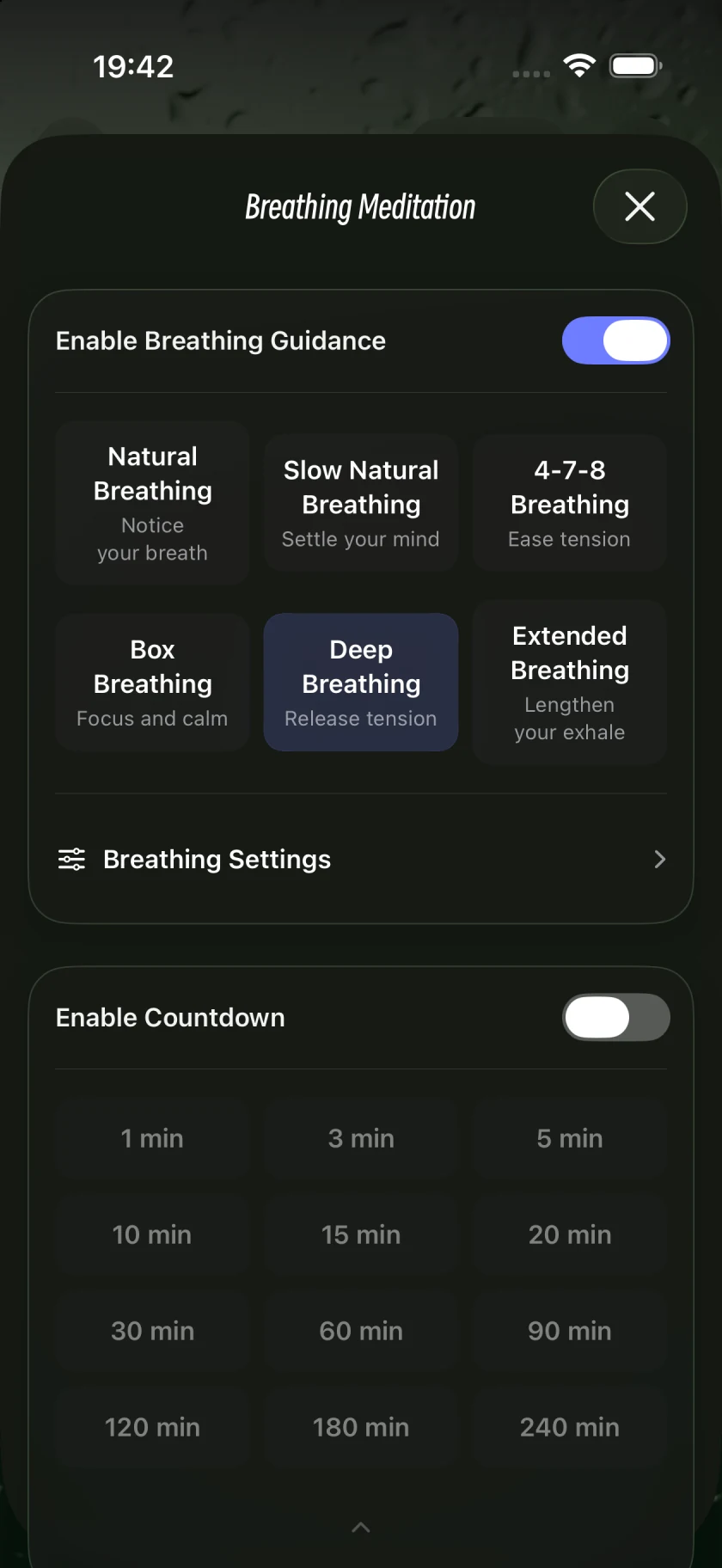
Select the rhythm title above the circle, such as Deep Breathing, to open practice settings. Some layouts show a Breathing Meditation entry instead. Both open the panel for the session timer and duration.
Step by step
1
Open the sound player
Select Sound in the iPhone tab bar, then choose a sound to open its player.
2
Open practice settings
Select the rhythm title above the circle, such as Deep Breathing. Some layouts use a Breathing Meditation entry to open the same panel.
3
Enable the timer
Turn Enable Countdown on, then choose 1, 3, 5 minutes or another displayed duration. Some layouts group additional choices under More Durations.
4
Return and start
Close the panel, check the time shown on the player and start playback. Playback stops when the session countdown ends.
Screens captured in Oat Meditation 1.048 on an iPhone Simulator. Controls may be arranged differently on iPad; use the button names to find the same options.
Is Countdown Before Starting the same setting?
No. Countdown Before Starting in Settings gives you preparation time before playback. The countdown in Breathing Meditation sets the session length. Settings also contains the Practice End Chime option.
What if I do not want an end time?
Turn Enable Countdown off to use untimed mode. Playback is still subject to the app’s current free allowance and membership benefits; untimed mode does not make all content free indefinitely.
Want a short visual rhythm practice?
The website breathing timer offers a visual rhythm and session timer without an app download.